

 Create PDF To Save Offline

Rainman Technology Pty Ltd
36 Sydenham Road
Brookvale, NSW 2100
Australia
www.rainmandesal.com
support@rainmandesal.com
Overview
The main control module inside the Rainman Auto Control Panel manages all system logic, safety interlocks, and operational sequencing. This guide outlines how to access the enclosure, replace key components, understand the wiring layout, perform firmware updates, and understand algorithm details.


Sensor Replacement
Rainman’s auto panel incorporates five sensors supplying data to the controller board to operate the watermaker. This section outlines how to replace the various sensors.
- Low pressure sensor after the prefilter.
- High pressure sensor at the RO membrane.
- Salinity probe to determine product water quality.
- Brine flow to measure waste water flow rate.
- Product water flow to measure water going into the tank.
Pressure Sensors
In rare cases where either pressure sensor provides false readings to the main controller, the affected sensor must be replaced. Both the high-pressure and low-pressure sensors can be replaced without accessing deeper electronic components. Until replacement is available, the system may continue to operate in manual override mode. Locate the sensors on the diagram below.
Disconnect the power from control panel and Rainman PSU before beginning any maintenance or repair work on the system.

- The wiring needs to be disconnected to replace the pressure sensors. Unplug the connector by lifting the lock mechanism and pulling connector straight out. Do this for both high pressure and low pressure sensors.

- An adjustable wrench and 22mm spanner is required to remove the high pressure sensor. Remove it by holding the manifold as in the photo and loosening the sensor.

- The low pressure sensor is secured by a push-fit connection. Remove it by pressing the metal collar into the fitting and gently pulling the sensor straight out.

Salinity Probe
This section coming soon.
Flow Sensors
The Rainman Auto Control Panel incorporates two turbine‑type digital flow meters. While these meters are highly robust and perform reliably under normal operating conditions, their accuracy can gradually decline over years of use, particularly after repeated winterizing and commissioning cycles. Because they are relatively inexpensive components, replacing them once a noticeable loss of accuracy occurs is a practical and cost‑effective solution.
Actuator Replacement
Rainman’s auto panel incorporates four actuators taking signal and power from the controller board to facilitate the watermaking process. This section outlines how to replace the various actuators.
- Pressure regulator.
- Diverter solenoid to direct water into tank when appropriate.
- Autoflush solenoid to facilitate fresh water flushing after shutdown.
- Pressure supply unit motor relay.
Pressure Regulator
This section coming soon.
Diverter Solenoid
This section coming soon.
Autoflush Solenoid
This section coming soon.
PSU Motor Relay
This section coming soon.
Controller Compartment
Physical Access
Apart from the two pressure sensors described above, all other components require direct access to the controller module. The following steps outline the procedure for removing the enclosure and accessing the controller.
Opening the Enclosure
- Disconnect power before beginning any work.
- Remove the four Phillips pan‑head screws located at the corners of the enclosure as shown in the picture.
- Lift the front cover straight off to expose the internal components.

Fuses
The controller module circuitry is protected by two separate fuses, which may fail under conditions such as external voltage spikes or a mechanically jammed pressure valve motor continuously attempting to operate.
The fuse located on the left side of the controller protects the sensor electronics. It is a fast‑acting 400 mA glass fuse. The fuse on the right side of the controller protects the circuitry against supply voltage spikes and overload. It is a slow‑blow (time‑delay) 4 A glass fuse.

Info Screen
All operating parameters available through the phone application can also be viewed on the controller’s integrated information display. This provides a useful alternative during fault troubleshooting when use of the phone application is impractical.

Controller Board Replacement
Wiring Diagram
The following image provides a clear comparison between the physical controller board and its corresponding wiring diagram. The wiring diagram illustrates the electrical connections and pinouts for each terminal, helping you understand how to properly connect and troubleshoot the system.
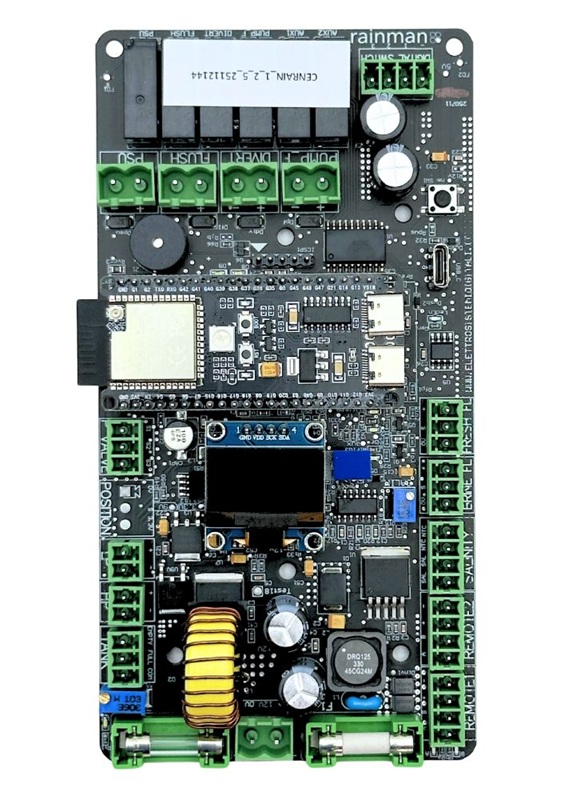

Board Replacement
Follow these steps to safely replace the main controller board:
- Early panels may not have labeled wires. Make sure you name each connector before disconnecting. Carefully unplug the 15 connectors attached to the existing controller board.
Note: Avoid pulling on the wires directly — grip the connector body to prevent damage.


- Gently detach the antenna from the board, pulling straight upwards.
The antenna connector is sensitive for force applied sideways.

- Locate and remove the screws securing the controller board using a small Phillips screwdriver.
Typically, there will be 5 screws securing the board, confirm all are removed before lifting the board.

-
Position the new board in place, aligning it with the mounting holes.
Reinstall and tighten the screws evenly — do not overtighten.
Reconnect the antenna carefully.
Reconnect all labeled wires and connectors, ensuring each one clicks or seats firmly.

Instructional Video
The video below provides a step‑by‑step demonstration of how to swap the main circuit board.
Firmware Update
Architecture Description
Rainman Automation operates using two dedicated electronic control systems, each designed for a specific role within the unit:
1. Communication Control Module (Small Board)
This module manages all internal communication functions as well as short‑range external (bluetooth) communication. It ensures reliable data exchange between system components and supports essential connectivity features.
2. Main Control & Power Module (Large Board)
This board serves as the primary hardware driver and power management system. It controls the core operational functions of the Rainman unit and regulates power distribution to all components.
Both circuit boards run their own specialized firmware. Under certain conditions—such as performance improvements, feature updates, or troubleshooting—these firmware versions may require updating.
In the downloadable link below, you will find two applications along with the latest firmware packages required to update both system boards:
Communications Module – ESP (small board)
Main Controller Unit (large board)
These files ensure you have the correct tools and firmware versions for updating each module as needed.

Firmware Update Compatibility
Rainman Automation firmware updates are currently supported only on Windows 10 and Windows 11 computers. These operating systems provide the stability and driver support required to run the update applications reliably.
Older versions of Windows may experience compatibility issues and are not recommended for performing firmware updates. At this time, macOS (Apple computers) is not supported, and we are not actively developing macOS compatibility. Support for Apple systems may or may not be added in the future, depending on demand and technical feasibility.
Note: When running the firmware update applications, some Windows devices may display a blue security screen stating the app could not be scanned and may be unsafe. Until this is resolved, click “More info”, then “Run anyway“ to proceed with the update.
Before proceeding with any of the following firmware update instructions, ensure the 12V power to the controller is switched off. This can be done by flipping the front panel power switch to the OFF position.
Update ESP module
Use a 90° elbow USB‑C cable for this update.
- Connect the cable to the communications controller first, then plug the other end into your computer.


- Open the downloaded package and navigate to the “ESP32 programming” folder. Inside, launch the flash_download_tool_3.9.3 application to begin the update process.


- After launching flash_download_tool_3.9.3, the application may take a few seconds to start. When the pop‑up menu appears, configure the settings as follows:
Chip Type: ESP32‑S3
WorkMode: Develop
LoadMode: UART

-
When the tool window opens, locate the three‑dots button as seen in highlighted area in the picture and click it to choose the firmware file. Select the file whose name begins with “TxRxBLE”.
The remaining portion of the filename is the date, which represents the firmware version.


-
Once the firmware file is selected, the line containing its address will turn green.
Verify the following before proceeding:The cell on the right side of the file address displays 0x10000.
A tick mark is visible on the left side of the file address.
Do not adjust any settings below this section.
At the bottom right side of the app window, choose the correct COM port on which your USB cable is plugged in. Make sure to do this selection even if a COM port seems to be already pre-selected.When everything is set, click Start to begin the update.

-
At the bottom of the window, you will see a green progress bar begins to move from left to right, indicating the upload progress. Do not interrupt the process until it is fully completed.
When the update finishes, a line of white text in blue background reading “Finish” will appear. At this point, you may close the application and disconnect the USB cable from the controller module. The update of communications controller is complete.


Update the Main Controller
- To update the Main Controller, open the downloaded package and navigate to the “USB controller bootloader” folder. Inside, launch the RainmanBootloader application to begin the update process.


-
After launching RainmanBootloader, the application may take a few seconds to start. When the pop‑up menu appears, click ‘Open File’ and select the file whose name begins with ‘RainmCentrale’. The remaining portion of the filename indicates the firmware version.
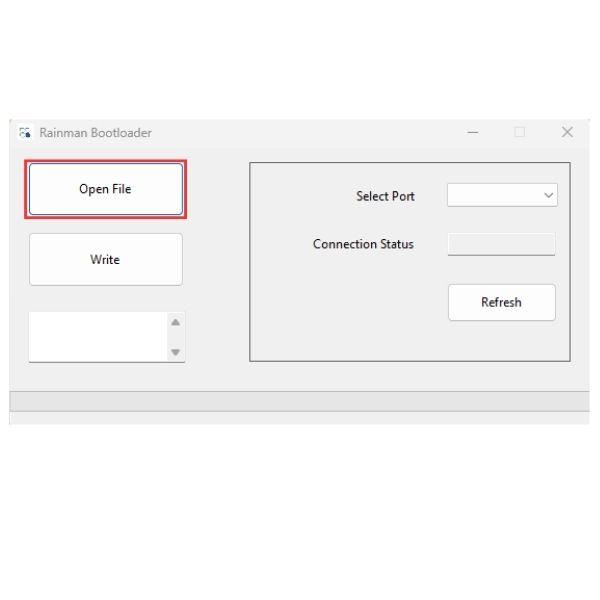

-
Once the firmware file is selected, you’ll see its address displayed at the bottom of the screen.
Now connect your USB‑C cable to the computer. With the cable ready, press and hold the marked reset button on the Main Controller, then plug in the USB‑C connector. Keep holding until the green light flashes, then release.Now, on the app select the correct port and click ‘Refresh’.

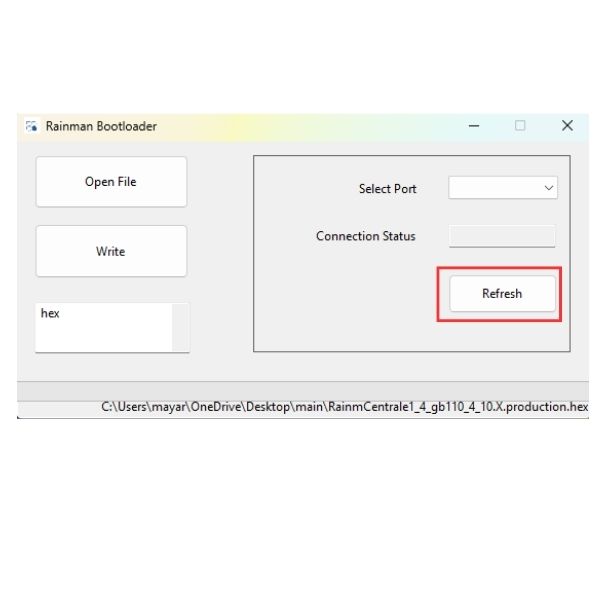
-
Once the firmware file is selected and the board is successfully connected, the Connection Status should display “Bootloader Ready”.
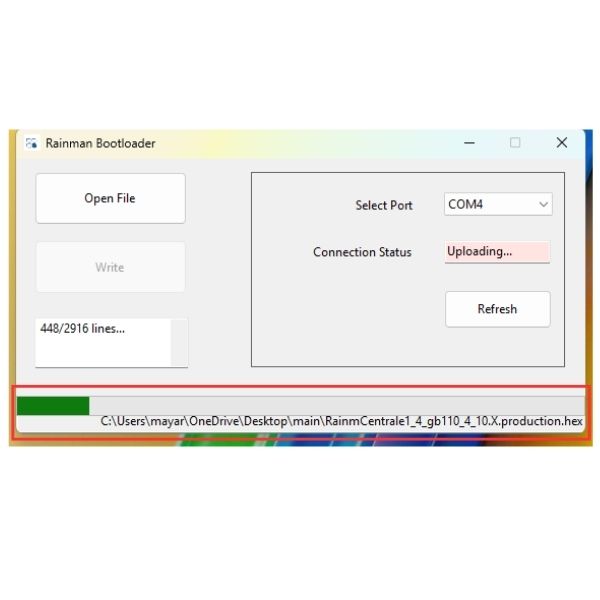
Click “Write” to begin the update.
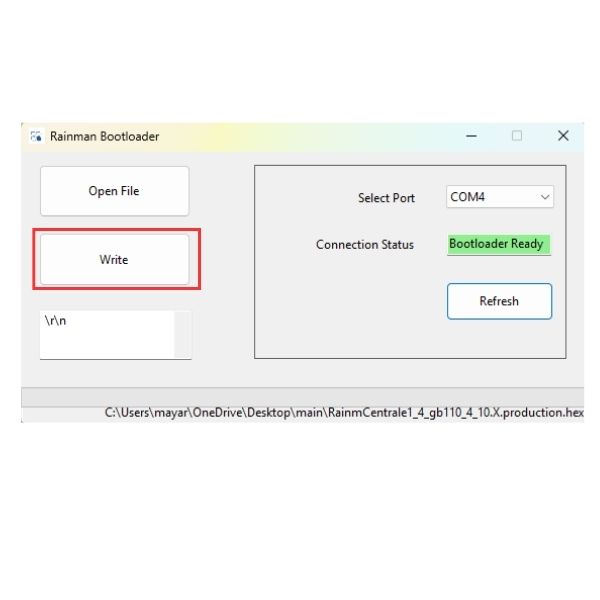
- At the bottom of the window, you will see a green progress bar begins to move from left to right, indicating the upload progress. Do not interrupt the process until it is fully completed.
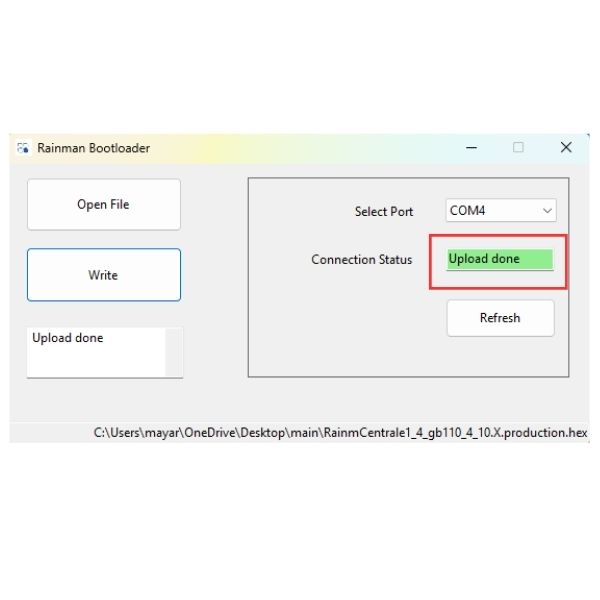
When the update finishes, Connection Status will change to a green background reading “Upload done”. At this point, you may close the application and disconnect the USB cable from the controller module. The update is now complete.
Firmware Revision History
The Rainman automated system contained four circuit boards and include three sets of firmware.
- The main controller contains firmware with the bulk of functionality. It is responsible for reading sensors and controlling the actuators.
- Piggy backed on the main controller is the bluetooth communications board responsible for sending and receiving data from external devices such as phone, tablet, or MFD systems. It is based on ESP32 and has its own firmware. It should always be kept updated at the same time as the main controller.
- The micropanel on the main control panel and remote micropanel are identical and utilise the same firmware. It is expected to never require updates.
Open For Firmware Revision Details
v4.15 – 2026 July 8
Compatible ESP version:
TxRxBLE.ino14_07_26
- Fixed system unintentionally stopping with “diverter fault” displayed. Diverter fault is not physically implemented, yet in certain scenarios it was possible to provoke the fault.
v4.14 – 2026 June 10
Compatible ESP version:
TxRxBLE.ino14_07_26
TxRxBLE.ino10_06_26
- Fixed fresh water flush duration not selecting from phone apps.
v4.13 – 2026 May 08
Compatible ESP version:
TxRxBLE.ino09_02_26
- Flush-timer LED fix: countdown now starts at 168 hours and the blue LED blinks 7 → 1 times in clean 24-hour bands (7 flashes 168–144 h … 1 flash 24–0 h), then flushes and resets the timer.
- Enhanced low pressure averaging.
v4.11 – 2026 March 18
Compatible ESP version:
TxRxBLE.ino09_02_26
- Low pressure shutdown threshold moved to 0.1 bar. Prevents faulting with “low pressure too low”
- Improved low pressure calibration behavior
- Update to prevent controller entering an undefined state when doing hard reset
- Support new TDS probe with 10K NTC thermistor
- Firmware temperature table updated from MF52-type 10K/3950 datasheet
- Compatibility for new conductivity probe
- Low pressure sensor accuracy.
v4.7 – 2026 January 7
Compatible ESP version:
TxRxBLE.ino20_10_25
- Salinity measurement improved.
v4.5 – 2025 October 22
Compatible ESP version:
TxRxBLE.ino20_10_25
- Enhanced serial number writing procedure.
v4.2 – 2025 October 7
Compatible ESP version:
TxRxBLE.ino16_09_25
- Enhanced salinity averaging.
v4.0 – 2025 September 26
Compatible ESP version:
TxRxBLE.ino16_09_25
- Introduced Bootloader, allowing for firmware updates in the field via USB-C and Windows laptop
- 10 second delay applied after PSU start, before pressure increases (fixed start-up sequencing)
- Flow tracking priority / pressure tracking priority switching updated.
v3.46 – 2025 September 16
Compatible ESP version:
TxRxBLE.ino16_09_25
- Initiated delay between pressing “START” button and starting PSU.
v3.44 – 2025 August 12
Compatible ESP version:
TxRxBLE.ino28_07_25
- Updated the firmware behavior for the full tank LED indication.
v3.43 – 2025 July 31
Compatible ESP version:
TxRxBLE.ino28_07_25
- System now measures product water correctly regardless of the valve position.
v3.41 – 2025 July 15
Compatible ESP version:
TxRxBLE.ino15_07_25
- Calibration values (including the High Pressure Factor) are now preserved independently from model selection
- Updated the default target flow values for the supported models
- Corrected the target flow configuration for the 55L model
- Added firmware changes to address the reported overpressure issue
- Fixed a bug where Product Flow was not correctly handled in Stop Mode. The displayed value is now 0 when the system is stopped.
v3.36 – 2025 June 15
Compatible ESP version:
TxRxBLE.ino29_05_25
- Initial production release of the firmware.
Operating Algorithms
This section coming soon